

Parenting an iPad, iPhone, or Macbook at home?
Your One Step:
✓ Does your child use an iPad, iPhone, or Macbook? If yes, enable one or more of our favorite Apple Screen Time features to get tech in check!
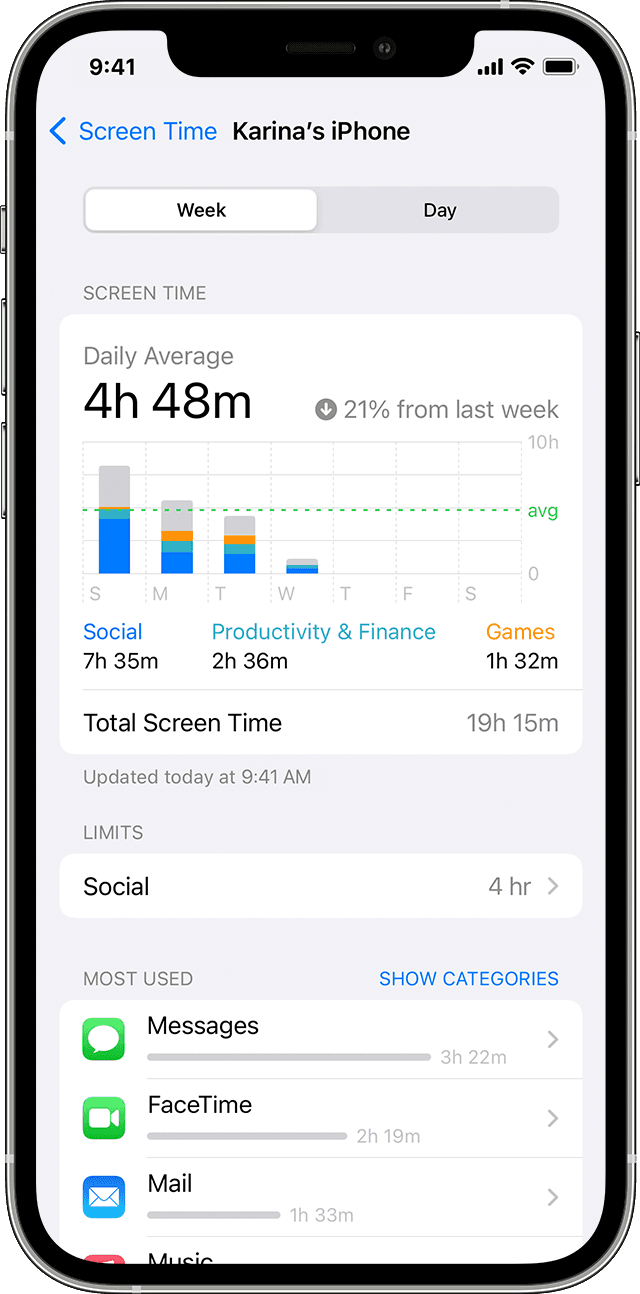
Most tech devices are not designed or set up for kids - Apple devices included! They come fully loaded: all features and access turned on. What we've learned along the way is that you need to proactively use guardrails to set you and your child up for success. If your child has access to an iPad, iPhone, or Macbook, one of our favorite guardrails is Apple Screen Time (for iPad/iPhone; for Macbook). It is free and already built in to Apple devices. Screen Time allows users to set app and time limits and see reports of how a device has been used. Is it perfect? Absolutely not. Like most "parental controls," there are loopholes. But the features in Apple ScreenTime can be powerful guardrails to limit use and protect against harm - setting them up is worth your efforts.
Getting Started
There is a lot to explore within Apple Screen Time. There are several features that we recommend parents/caregivers understand and use at a minimum to keep iPad, iPhone, and Macbook use in check. For those of you navigating an iPhone, we have a new resource, Simplifying iPhones, which includes step-by-step video tutorials on how to set up a "simple" iPhone and limit access on an existing iPhone. It's NEVER too late to reel it device use!
Let's take a look at our 4 favorite Apple Screen time features:

All in the family! Family Sharing allows you to create an Apple ID for each child with the correct birthdate (which is important), manage device use remotely with Screen Time, and approve new apps from a parent's device with Ask to Buy. Protect Young Eyes has detailed instructions (scroll down to "Layer 3").

Goodbye App Store! Who knew? Go to Settings > Screen Time > Content & Privacy Restrictions > Toggle on. Then, iTunes & App Store Purchases > select "Don't Allow" under Installing Apps to remove the App Store from the device.

Deploy Downtime. Kids and teens need 8-12 hours of sleep, depending on their age. Disabling devices with the Downtime feature can help! Go to Settings > Screen Time > Downtime > Scheduled > Toggle on. We suggest setting downtime to start an hour before bedtime and end 30-60 min after waking up.

Time's up. Setting time limits on apps is a great way to rein in overuse. For older kids (tweens and teens) with social media apps, try 20 min per app. They can always ask for more time - which then gives you a chance to check in! Go to Settings > Screen Time > App Limits > Toggle on Add Limit. From there you can select all apps, or a category of apps (e.g. all Social), or a specific app (e.g. Instagram). You can also set time limits for specific websites (like YouTube.com)! Click Next > Set the time limit. You can customize the time limit by day of the week. Make sure to also toggle on "Block at end of limit"!
Need support?
If you need more support with Apple devices, reach out to us! We offer personalized consulting services—either in-home (Marin County) or virtually - for parents who want help managing technology at home. We work one-on-one with families to create a tech-positive environment that reflects your values, supports healthier habits, and reduces daily tech-related stress. We also provide a supportive space to talk through the unique challenges of parenting in a digital world. Sometimes having an experienced guide can make all the difference. For more information, contact us at info@screensense.org.