


Managing a School Device
“Every technology is both a burden and a blessing; not either-or, but this-and-that.”
School-issued devices are powerful learning tools, but like any tech tool, they work best with guardrails and structure. When age-appropriate, Chromebooks and tablets can open up unique opportunities for research, creativity, and collaboration, but they can also blur the line between schoolwork and off-task “screen time.” Having a school device at home presents an opportunity for parents to proactively coach their child to use a digital device as a tool to support learning while minimizing distractions and conflict.

Ask your child for a tour of their school device
Start by asking your child to give you a tour of their school device. If you lean in and get curious, you can set parameters in a tech positive way. Take this as an opportunity for them to show off their tech skills and knowledge - let them teach you about their school device!
QUESTIONS TO ASK YOUR CHILD:
What apps are accessible?
School-related apps likely come preloaded on the device along with a catalog of optional apps that a student may later download. Ideally the device is a “walled garden” with carefully selected apps and features. Keep an eye out for additional apps that may require proactive conversations - for example, if your child can access YouTube, YouTube Kids, social media apps, an unrestricted App Store, or video games, talk to your school about blocking them.
Any concerns about what's accessible should be directed to the school's administration, tech department, or classroom teacher. You can always ask your child’s school what is blocked and filtered and let them know if you see a breach - schools and parents need to work together to identify problems and keep school device use in check.
How are you using it for classes?
Dive into a few apps/platforms and have your child walk you through how they work for a particular class. What are they excited about? Do they have any questions?
Do you have a school email?
Have your child show you their email account and explain how they can communicate with their teachers.
How do you get your homework assignments and grades?
Is it Canvas, Google Classroom or some other platform? Have them show you so you know they understand how this works. If they don't, encourage them to ask their teachers the next day at school and report back to you!
What’s the device password?
Take note of your child’s password so you always have it handy. Remind your child not to change the password - you should have access to the device.
What notifications do you get? Which are helpful vs. annoying?
Teach your child how to adjust notifications so they only receive necessary rather than disruptive ones. You can typically find and adjust notifications within Settings. Check in after a few weeks to see if adjustments are needed - explain to your child that this is an iterative process. Optimizing notifications is an important skill in the digital age!

Asking for a tour of your child’s school device is a great thing to do at the start of the school year and anytime you want to check in on how they’re using the device.
Topics to discuss with your child
Clarify WHEN your child can use the school device. Even though this is a school device, your family rules for device use at home should be applied. Limit your child’s use of the school device to align with your family values and as you find suitable for homework needs. If your child is younger, you can have them ask for permission before using the device.
Clarify WHERE your child can use the device. Best practice is to use any device in a common area rather than in their bedroom, but this isn't always feasible. If used in a bedroom, consider a door-open policy. Either way, we recommend keeping school work at a table or desk where good posture is easier to maintain - avoid school device use in bed or on the couch!
Set an overnight charging routine. Charge the device each night in a location outside your child's bedroom so it doesn't disrupt their sleep. Having digital devices put away overnight is arguably the most important step you can take to protect your child’s wellbeing. Setting up a charging station and a separate alarm clock are helpful steps. Consider turning the school device off at least an hour before bedtime or setting a “tech bedtime.” Many families have a house rule that all digital devices are off by 8pm or 9pm.
Review your school’s Tech Policy with your child, especially any agreements about student conduct. This is a good opportunity to underscore your expectations that they only use the school device for educational purposes — not in counterproductive ways like gaming, video streaming, or off-task Internet surfing. Reinforce that your child should be respectful, considerate, and kind.
Set the expectation for occasional check-ins. Explain you’ll be reviewing their device use with them and that you’re on their team, helping them avoid distractions and stay safe online.
As issues come up: Try asking questions from an inquisitive (not emotional) perspective, channeling your “coaching” role. Try to frame these conversations as “your family as a team vs. sticky tech design” instead of pitting parent vs. child. Remember that healthy tech use is a SKILL that needs to be taught and practiced - you are your child's coach and mentor at home. Expect some learning pains and course-corrections as you guide your child towards good practices.
If your child spends too much time “doing homework” on their school device, it could be a sign they are getting off task. Common pitfalls on school devices include kids playing unblocked internet games, shopping online, and finding backdoor access to YouTube. It may be a good time to have another tour (see above), make some course-corrections, or check in with their teacher(s). For more tips on managing homework time, read this blog.
Below are additional comments specific to school iPads and Chromebooks. You can also ask your child’s school whether they provide recommendations for school device use at home.
School iPads
A school iPad is an Apple tablet that is set up and controlled by your child’s school and typically has access to:
Browsing the internet - typically via the Safari browser although some school iPads allow additional browsers to be downloaded like Chrome or Google (best to keep those off if possible since they are often less filtered on school iPads)
Apps and features selected by your child’s school or teacher - like Google Classroom, Clever, Duolingo, Google Docs, etc.
A selection of additional apps available in a curated app library (hopefully the iPad blocks access to the public App Store!) - definitely check your child’s iPad to see what apps they may have access to and report any concerns to the school
Apple Screen Time tools - these may or may not be enabled on your child’s school device. Some schools disable this tool entirely whereas others allow parents to set app time limits, an overnight downtime, and/or restrict access to certain content. If this tool is available, you likely have to set it up directly on your child’s school iPad because connecting a school iPad to your family’s Family Sharing typically isn’t an option.
Each school or school district can set up their school iPads differently so there’s variation in what they choose to allow, filter, or block. Some only allow a few “whitelisted” apps or websites whereas others allow tons of apps or websites with a list of blocked “blacklisted” apps or websites. For example, a school may block problematic or recreational apps (like Netflix) and websites (like YouTube.com) but it can be an ongoing game of whack-a-mole as motivated kids find online games and streaming content that haven’t yet been blocked. If you see content you don’t want on your child’s iPad, reach out directly to your child’s school to discuss.
These two features are worth adjusting on the school iPad:
Review and adjust notification settings. Teach your child to tailor their notifications so they only receive those they really need and actually will read.
Turn on Apple "Screen Time." If enabled on your child’s school iPad, the “Screen Time” tool (found under “Settings”) should be turned on to track use and establish any time limits, especially if overuse is a suspected issue. Occasionally review your child's Screen Time data with them, praising good habits and troubleshooting any issues. Normalize having conversations about healthy tech use. If the Apple Screen Time tool is enabled, definitely set up any time limits that make your life easier.
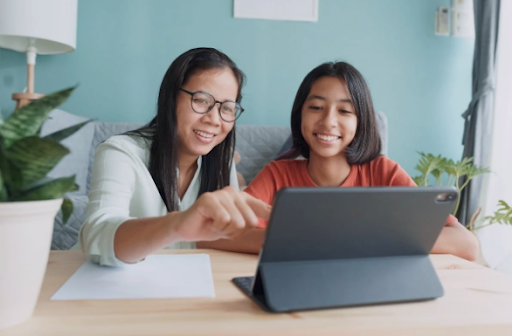
Your best tools for parenting a school iPad are having clear house rules like only allowing iPad access for homework (not recreational use) during certain hours and in a common area, and controlling WiFi access to the school iPad if needed.
School Chromebook
Chromebooks are a laptop made by Google that has access to:
Browsing the internet - typically via the Chrome browser
All of Google’s tools - like Google Docs, Sheets, Slides, Drive, Classroom, etc
Android apps via Google Play Store - although this is often disabled, controlled, or filtered by a school (definitely check your child’s Chromebook to see what apps they may have access to)
School Chromebooks are typically enrolled in a school’s Google Workspace for Education management system which means parents can not personally control what content is accessible or set device time limits as you could with a personal Chromebook that’s connected to Google Family Link. Each school or school district can set up Chromebooks differently so there’s variation in what they choose to allow vs. block. Many schools try to block problematic or distracting websites but it’s an ongoing game of whack-a-mole and motivated kids find online games and streaming content. If you see content you don’t want on your child’s Chromebook, reach out directly to your child’s school to discuss.
Your best tools for parenting a school Chromebook are having clear house rules like only allowing Chromebook access for homework (not recreational use) during certain hours and in a common area, and controlling Wi-Fi access to the school Chromebook if needed.
Here are two resources for further support:
Reconsidering how and when ed tech is used
As part of a collective recognition of the impacts of tech on learning, attention, and socialization, we see a shift happening in how educators and parents are using (or opting out of) school devices. Many school leaders are reconsidering how and when they use EdTech and devices. Meanwhile, many parents and teachers also want to see changes.
Our advice is to recognize that parents and educators are all in this challenging situation together and are on the same team. We all want healthy kids who can focus, learn, connect, and thrive. If you have questions or concerns as a parent or teacher, we encourage approaching your school or district leadership with curiosity, empathy, and a collaborative spirit. Don’t make assumptions - instead get informed by asking thoughtful questions.
Below are suggested resources if you’d like to get more informed or involved in advocacy efforts around EdTech and school devices.
The Digital Delusion: book by neuroscientist and educator Dr. Jared Cooney Horvath. Watch his 5-min Congressional testimony. Want more? Subscribe to Horvath’s Substack.
The False Promise of Device-based Education and The Most Compelling Argument against Tech in Schools: two essays from Jonathan Haidt’s Substack as he begins to articulate that “delay and limit EdTech” is a fifth new norm to supplement the four norms outlined in The Anxious Generation.
Unplug EdTech Toolkit for parents by technology and child development expert Emily Cherkin. Read her essays like The Six Myths of EdTech and The Four Norms of EdTech. Want more? Subscribe to Cherkin’s Substack.
LA Unified School District’s Guidelines for Student Screen Time Policy and LAUSD’s board approved guidelines: Learn from Los Angeles Unified School District which updated their screen time policy in 2026. Read a summarizing news story.
NYC’s AI moratorium for 2026-27 school year: Read this press release from NYC mayor and NYC Public Schools’ policy update on AI moratorium and screen time limits.
Schools Beyond Screens: national coalition of parents and educators advocating for evidence-based guidelines around technology in the classroom. Check out their Student Tech Bill of Rights.
Screenwise Schools - an emerging group that's driving change in CA to support balanced, responsible, and intentional edtech
Every School has practical resources including the EdTech Triangle (an open-source research-based model of healthy classroom tech use) and a one-pager outlining ten best practices for using EdTech.
Fairplay’s Screens in Schools Action Kit: tools and resources for parents and educators.
EdTech Law Center: Lawyers pushing for change in EdTech regulation from the legal angle.